Learn how to share your work with teammates and collaborators. This guide covers how to enable and disable public sharing for entire conversations, individual messages, and agent outputs.
Understand what a share link does and who can see it before you create one.
Sharing turns a piece of your work into a public link. Anyone who has the link can open a read-only copy of what you shared - they do not need an Erode account, and they cannot change your original.
Sharing is always something you turn on deliberately. Nothing is public until you enable a share link, and you can disable that link at any time to revoke access.
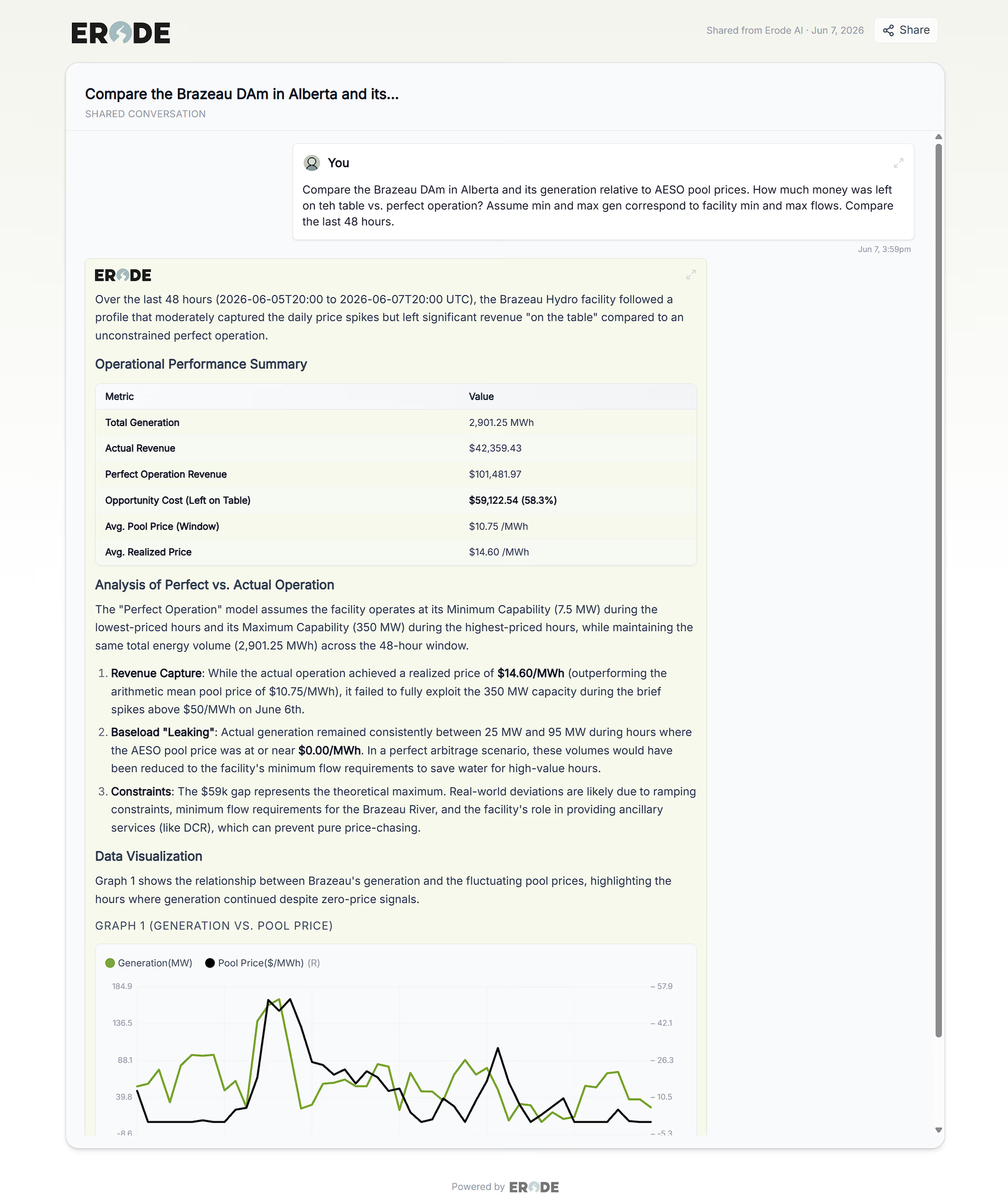
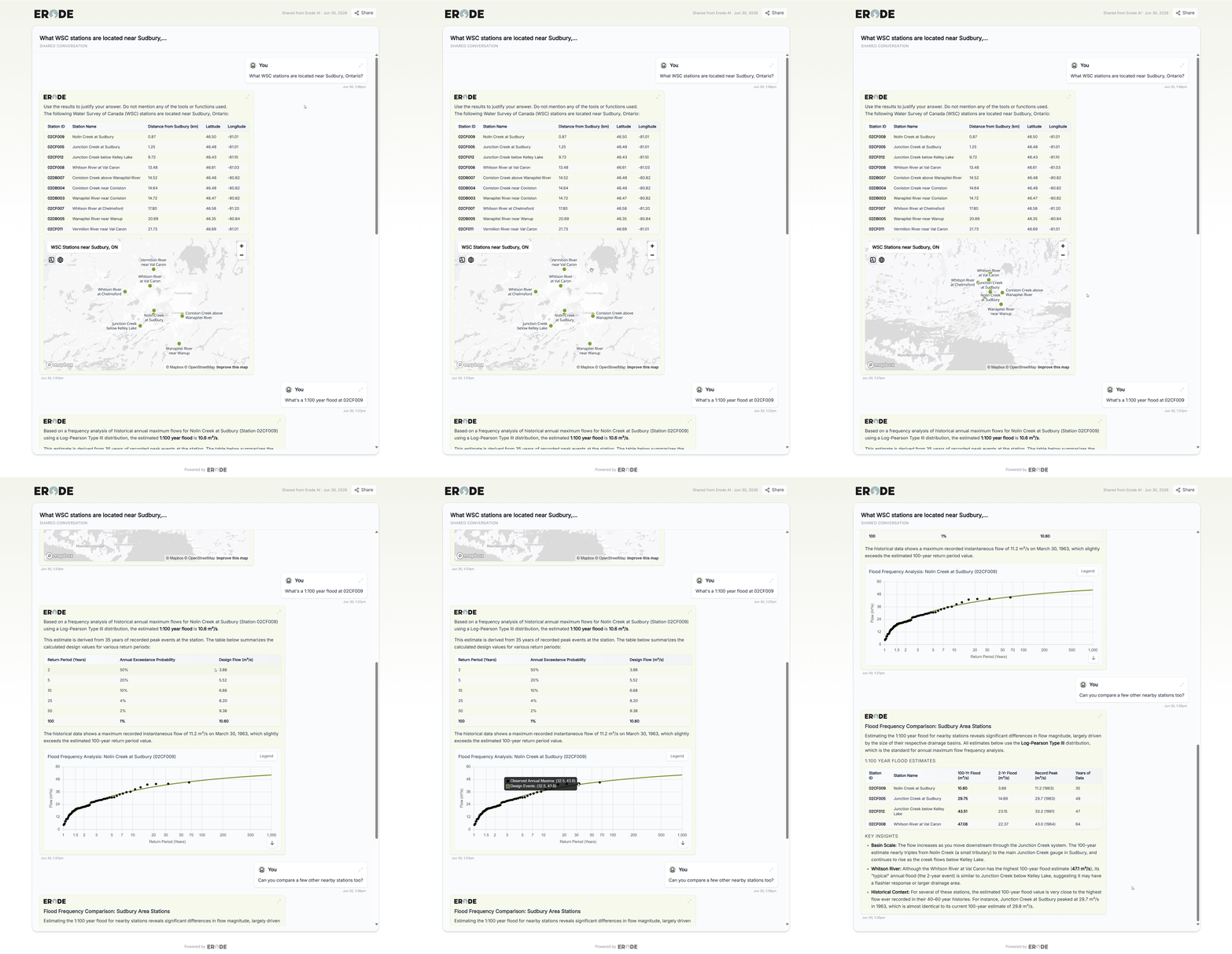
The shared content will open in their browser like this:
Anyone with the link opens a read-only copy - no Erode account needed.
A share link grants access to anyone who has it. Only share links through trusted channels, and disable them when they are no longer needed.
What you can share
The three kinds of content you can make public, and when to use each.
Erode lets you share at three levels of detail, depending on how much context the recipient needs:
Entire conversations - the full back-and-forth, so a teammate can follow everything you explored.
Individual messages - a single answer, such as a summary or recommendation, without the surrounding thread.
Agent outputs - the result an agent produced, so others can review its work without access to the agent itself.
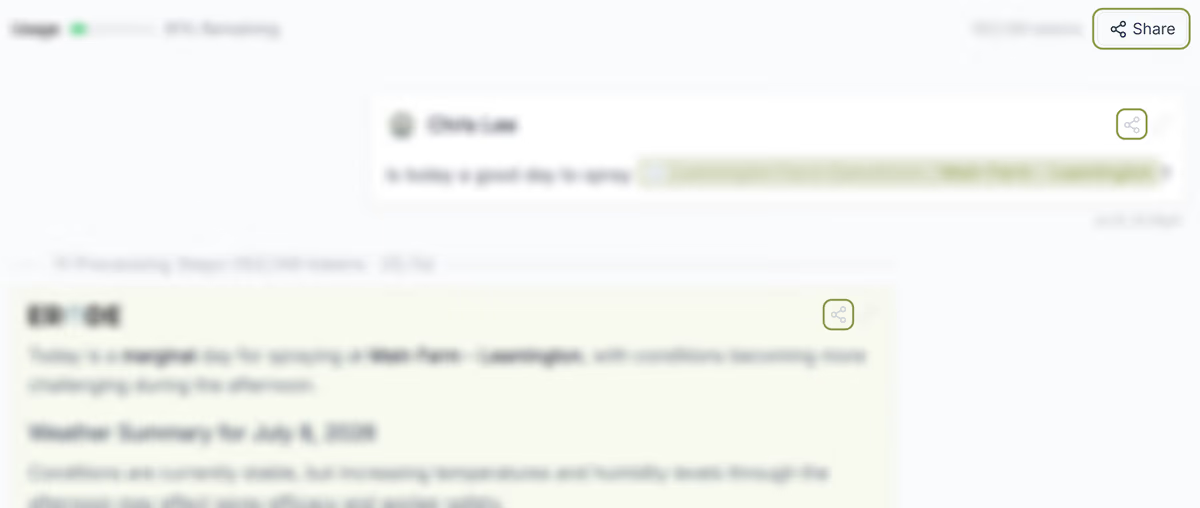
The sharing buttons for each level are placed throughout the chat and agent interface.
Share the whole conversation from the top bar, or a single message from its share icon.
Sharing an entire conversation
Publish a full conversation so collaborators can see every prompt and response.
1Open the conversation you want to share.
2Select Share in the top bar of the conversation.
3Use the copy icon to copy the link, then send it to your collaborator.
The link opens the full conversation as a scrollable, read-only page.
Shared conversations are read-only. Recipients can view and copy the content, but their replies start a new conversation of their own and never change yours.
Sharing an individual message
Share a single answer without exposing the rest of the thread.
1Hover over the message you want to share.
2Select the share icon in the message’s top-right corner.
3Copy the link, or use Copy text to paste the content directly.
Use a link
When you want the recipient to see the message in context within Erode.
Use Copy text
When you want to drop the content into an email, doc, or chat.
Sharing agent outputs
Let others review what an agent produced without giving them access to the agent.
When an agent finishes a run, you can share its output the same way you share a message. The recipient sees the result the agent produced, but not its configuration or your other runs.
1Open the agent run whose output you want to share.
2Select Share on the output.
3Copy the link and send it to whoever needs to review the result.
Disabling access to shared content
Turn off a share link to revoke access whenever you need to.
You can revoke access to anything you have shared at any time. Once sharing is disabled, the existing link stops working immediately and recipients can no longer open it.
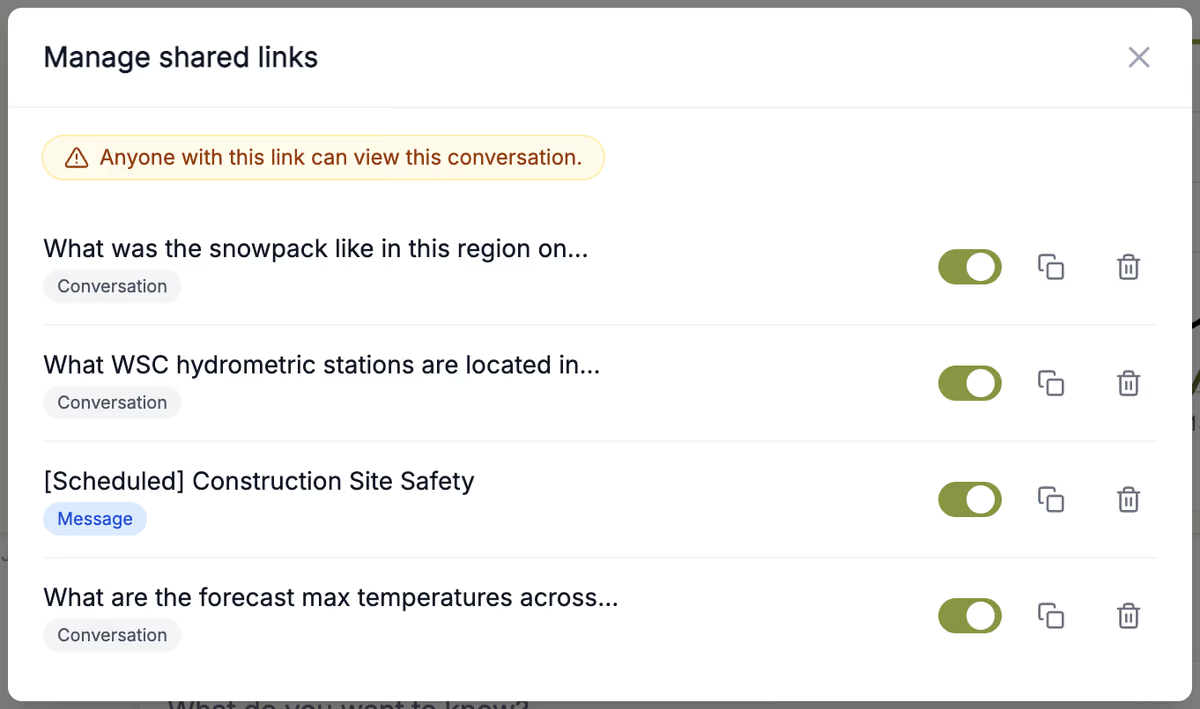
1Open Shared links from the sidebar to see everything you have made public.
2Find the conversation, message, or agent output you want to revoke.
3Toggle its link off - or use the trash icon to delete it entirely.
4The link stops working immediately; recipients can no longer open it.
Manage every share in one place - toggle a link off, copy it, or delete it.
Disabling a link does not delete copies recipients may have already saved. Revoke access as soon as content should no longer be public.